Laptop Overheating? Here's What You Can Do
Jan 28, 2026 • 10 min read
Is your laptop hot enough to cook an egg? Excessive heat isn't just uncomfortable - it can permanently damage your MacBook, Dell, HP, or Lenovo laptop. At RepairRama in the Bronx, we repair overheating computers daily. In this comprehensive guide, we'll explain why laptops overheat, how to fix it yourself, and when professional computer repair is necessary.
Why Laptops Overheat: Common Causes
1. Dust and Debris Buildup
The #1 cause of laptop overheating. Over time, dust accumulates in cooling vents, fans, and heat sinks. This blocks airflow and traps heat inside. Even 6 months of normal use can create significant dust buildup, especially in the dusty Bronx environment.
2. Blocked Ventilation
Using your laptop on soft surfaces (beds, couches, blankets) blocks the bottom vents. Most laptops intake cool air from the bottom and exhaust hot air from the sides or back. Blocking these vents causes immediate overheating.
3. Failing Cooling Fan
Laptop fans have a lifespan of 3-5 years. If you hear loud grinding noises or your fan isn't spinning, it's failing. A broken fan means zero active cooling, causing dangerous temperatures within minutes.
4. Dried Thermal Paste
Thermal paste transfers heat from your CPU/GPU to the heat sink. After 2-3 years, thermal paste dries out and loses effectiveness. This is especially common in older MacBooks, ThinkPads, and gaming laptops.
5. Resource-Intensive Programs
Running demanding software (video editing, gaming, CAD programs, Chrome with 50 tabs) generates significant heat. This is normal, but combined with other issues, it becomes problematic.
6. Malware and Background Processes
Malware, cryptocurrency miners, and runaway background processes max out your CPU, generating excess heat. Check Task Manager (Windows) or Activity Monitor (Mac) for suspicious processes using high CPU.
7. Battery Issues
Swollen or degraded batteries generate heat. If your laptop's trackpad is raised or the bottom panel is bulging, your battery is swollen - a serious fire hazard requiring immediate professional attention at RepairRama.
DIY Solutions for Laptop Overheating
1. Clean Vents and Fans (External Cleaning)
What you'll need: Compressed air, soft brush
Steps:
- Power off your laptop and unplug it
- Hold compressed air 6 inches from vents
- Blow air in short bursts into all vents (sides, back, bottom)
- Use a soft brush to dislodge visible dust
- Repeat every 2-3 months for prevention
Warning: Don't hold the can at angles that spray liquid. Keep the can upright and use short bursts.
2. Use a Laptop Cooling Pad
Cooling pads elevate your laptop and provide additional airflow. Good options range from $20-$50 on Amazon. Look for pads with multiple fans and USB power. This is especially helpful for gaming laptops or heavy workloads.
3. Work on Hard, Flat Surfaces
Always use your laptop on hard surfaces like desks or tables. If you must use it on your lap, place it on a hard book or laptop tray. Never use it directly on beds, blankets, or couches.
4. Adjust Power Settings
For Windows:
- Go to Control Panel → Power Options
- Select "Power Saver" or "Balanced" mode
- Click "Change plan settings" → "Change advanced power settings"
- Set "Maximum processor state" to 95% (reduces heat significantly)
For Mac:
- Go to System Settings → Battery
- Enable "Low Power Mode"
- Disable "Automatic graphics switching" if you have dedicated GPU
5. Close Unnecessary Programs
Open Task Manager (Ctrl+Shift+Esc on Windows) or Activity Monitor (Command+Space, type "Activity Monitor" on Mac). Sort by CPU usage and close programs you're not using. Common culprits: Chrome, Spotify, Discord, Steam, cloud sync programs.
6. Update Drivers and Software
Outdated drivers, especially graphics drivers, can cause overheating. Visit your laptop manufacturer's website (Dell, HP, Lenovo, etc.) and download the latest drivers. For Macs, keep macOS updated.
7. Run Antivirus Scan
Malware can max out your CPU. Run a full system scan with Windows Defender, Malwarebytes, or your preferred antivirus software. Remove any detected threats.
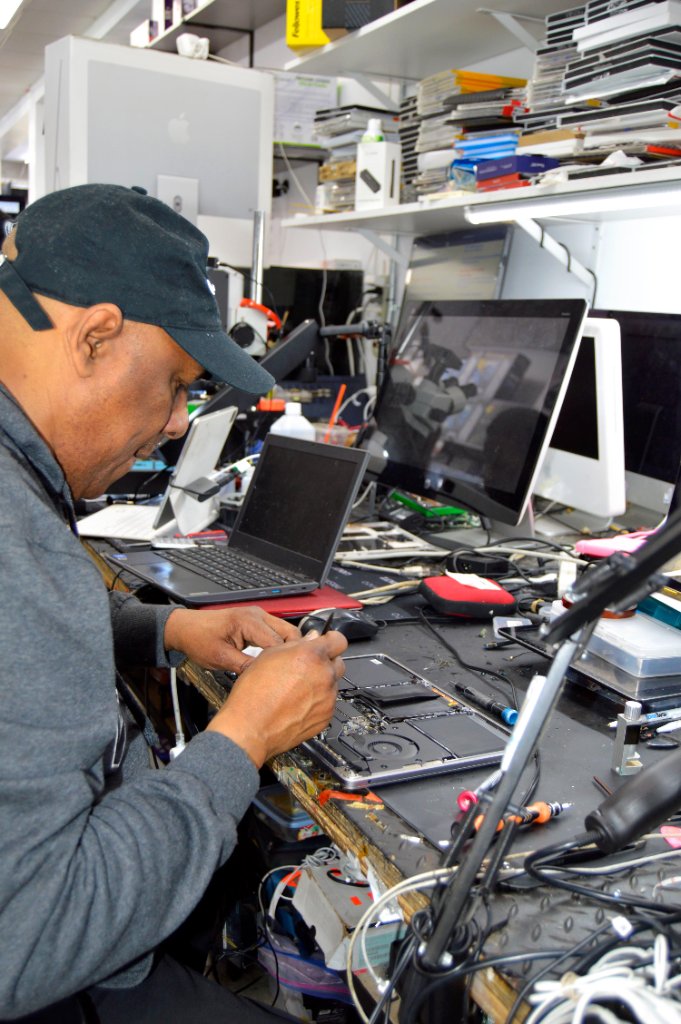
When to Seek Professional Laptop Repair
Visit RepairRama if:
- Your laptop overheats even after trying DIY solutions
- Fan makes loud grinding or clicking noises
- Fan doesn't spin at all
- Battery is swollen or trackpad is raised
- Laptop shuts down due to heat (thermal shutdown)
- You're uncomfortable opening your laptop for internal cleaning
- Laptop is a MacBook (requires specialized tools and expertise)
Professional Laptop Cooling Services
At RepairRama (4372 White Plains Road, Bronx NY), our computer repair services include:
- Deep internal cleaning: Complete disassembly and cleaning of fans, heat sinks, and vents ($60-$100)
- Thermal paste replacement: Fresh application of high-quality thermal compound ($40-$80)
- Fan replacement: Install new cooling fans when old ones fail ($80-$150)
- Heat sink replacement: For damaged or corroded heat sinks ($100-$200)
- Battery replacement: Replace swollen or degraded batteries ($80-$250)
- Diagnostic service: Comprehensive thermal testing ($FREE with repair)
Preventing Future Overheating
- Clean vents every 2-3 months with compressed air
- Use cooling pads for extended work sessions or gaming
- Keep laptop updated with latest drivers and OS updates
- Don't block vents - use on hard, flat surfaces only
- Schedule professional cleaning annually for heavily-used laptops
- Monitor temperatures with free software like HWMonitor or iStat Menus
- Replace thermal paste every 2-3 years on older laptops
Safe Operating Temperatures
Normal laptop temperatures:
- Idle: 30-50°C (86-122°F)
- Light use: 50-65°C (122-149°F)
- Heavy use/gaming: 65-85°C (149-185°F)
- Maximum safe: 90°C (194°F)
Temperatures consistently above 85°C or spikes to 95°C+ indicate serious cooling problems. Download temperature monitoring software to track your temps.
⚠️ DANGER SIGNS - GET IMMEDIATE HELP:
- Laptop is too hot to touch
- Automatic shutdowns due to heat
- Burning smell coming from laptop
- Swollen battery or raised trackpad
- Visible warping or melting of plastic
These indicate fire risk. Power off immediately and bring to RepairRama for emergency repair.
Laptop Overheating? We Can Fix It Fast
Don't risk permanent damage. Visit RepairRama in the Bronx for professional laptop cleaning, fan replacement, and thermal paste service. Same-day repairs available!
FAQs
Can overheating damage my laptop permanently?
Yes. Prolonged high temperatures can damage the CPU, GPU, motherboard, battery, and storage drives. This shortens your laptop's lifespan and can cause complete failure.
How much does professional laptop cleaning cost?
At RepairRama in the Bronx, deep internal cleaning with fan service costs $60-$100. Thermal paste replacement is an additional $40-$80. Most customers see immediate temperature improvements.
How often should I clean my laptop?
External cleaning (compressed air) every 2-3 months. Professional internal cleaning annually for heavy users or every 2 years for average users.
Related Services & Reading